

July’s release gives loan officers richer pipeline views, which now include loan data and a foundation for managing referral partner relationships. The Reporting Center receives meaningful customer-driven updates, replacing a stack of custom report requests with direct admin access. Engage SMS adds Group Messaging, Tidalwave joins the Expert Partner Network, and a handful of high-impact journey and platform improvements round out the release.
Lead Management Updates
Why it matters
Lead Management continues to expand with each release. July adds structured referral partner tracking, loan data visibility in Pipeline Views, new integration entry points, and expanded field support — building on the June addition of LOS-driven lead stage updates and mobile app access.
What’s new
- Referral Partner Management: Converts the free-text “Referred By” field into a structured relationship with a contact record. Loan officers can search for an existing contact or create a new one directly from a lead to link as the referral source. Referral Partners can be designated as official partners (visually flagged on their profile) and Pipeline Views can be filtered to show only contacts with a designated referral partner on file. Clicking “Referred By” navigates directly to the referral partner’s contact profile, which displays all leads shared between that LO and that partner. With referral partners as structured contact records, existing Journey triggers — such as Lead Created and Lead Stage Change — can be used to send automated thank-you messages and status updates to the referring partner, without building any new workflows from scratch.
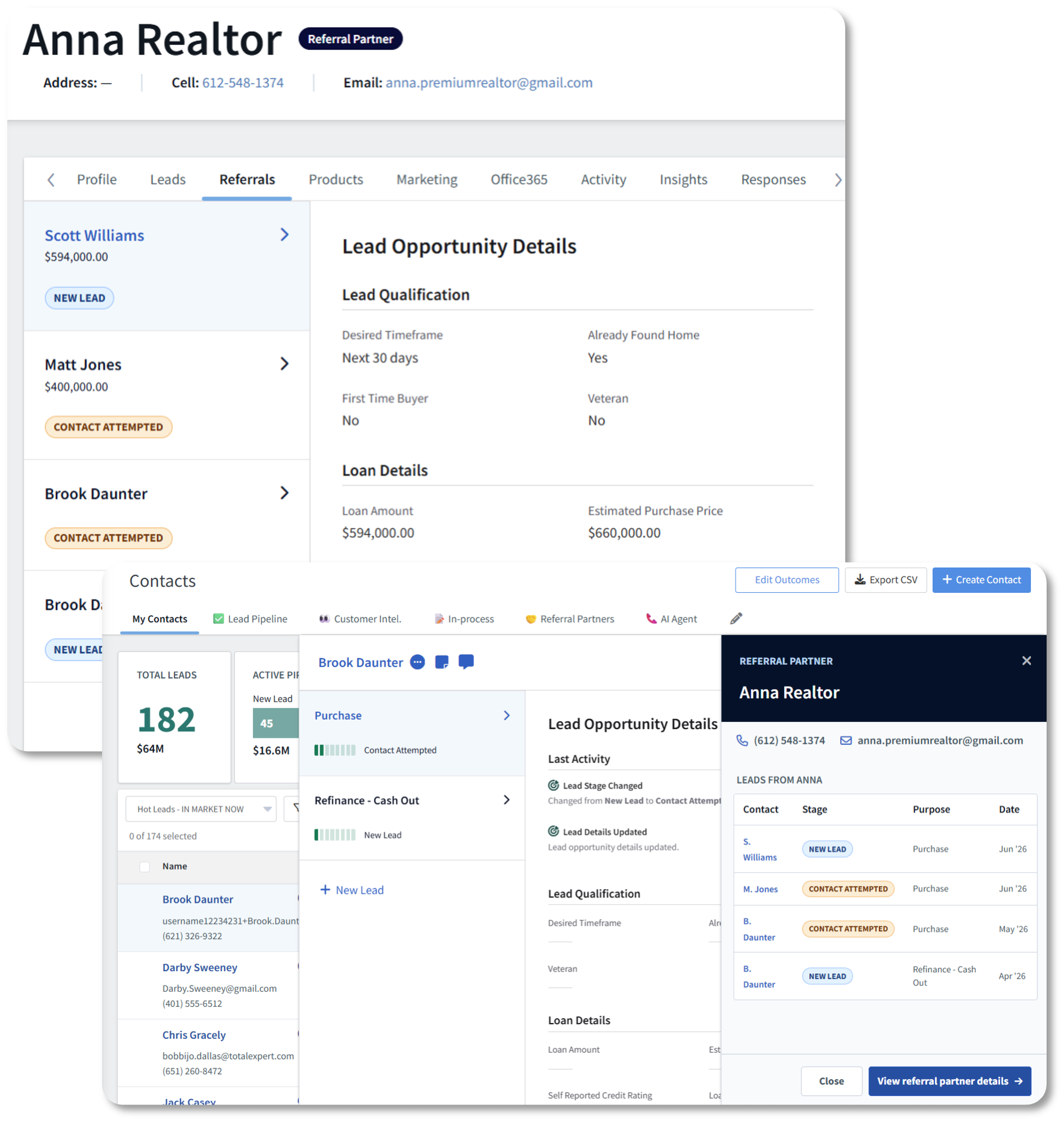
How to get started: Loan officers should begin linking referral partners to new leads as soon as this releases. Admins should review existing Journey workflows and consider including a Referral Partner thank-you to take advantage of the new trigger. - Zapier, Evocalize, and YLopo integration via Lead Management API: Organizations can now receive leads programmatically from Zapier, Evocalize, and YLopo through the Lead Management External API. Leads flow directly into the Lead Management pipeline with full routing, Journey, and reporting support with no manual import required.
How to get started: Admins at organizations using any of these platforms should discuss with their CSM the process of adding the integration or updating their current integration setup. - Additional standard Lead Management fields — API and importer support: UTM parameters and additional standard fields are now supported in the Lead Management External API and importer, improving how lead source data flows in from third-party systems.
How to get started: Admins or technical teams managing lead imports or API integrations should update their field mappings to include UTM parameters and any newly available standard fields. No action needed for teams not using the API or importer. - Lead source in Journey campaigns: Journey builders can now use Lead Source as a targeting condition within campaign operators, enabling more precise automation based on how a lead was acquired.
How to get started: Admins should audit existing Lead Management Journeys and consider adding Lead Source conditions to segment automated outreach by channel (for example, treating leads from a referral partner differently than leads from a website form).
Availability
- Audience: Loan Officers, Loan Officer Assistants, Sales Managers, and Admins at organizations with Lead Management enabled.
- Status: Generally Available for clients with Lead Management enabled.
How to get started
Pipeline Views: Loan Data Columns
Why it matters
Pipeline Views are how loan officers manage their day — and until now, the data available in those views was limited to contact-level fields. Loan officers had to navigate away to a loan record to see the details that matter most to their pipeline. Loan data columns bring that information directly into the view, so teams can sort, filter, and prioritize without leaving their list.
What’s new
- Forty-four standard loan fields available as columns: A new “Loan Information” sub-section under Standard Data in the column picker gives users access to forty-four standard loan-level fields — including Loan Amount, Loan Type, Loan Status, Rate, Closing Date, Loan To Value, and more. Columns are sortable ascending and descending, and can be reordered or removed at any time. Loan data only populates for contacts in a borrower role — non-borrower loan participants will show a blank state in loan columns. When a contact has multiple loans, the most recent loan matching the view’s filter criteria is displayed.
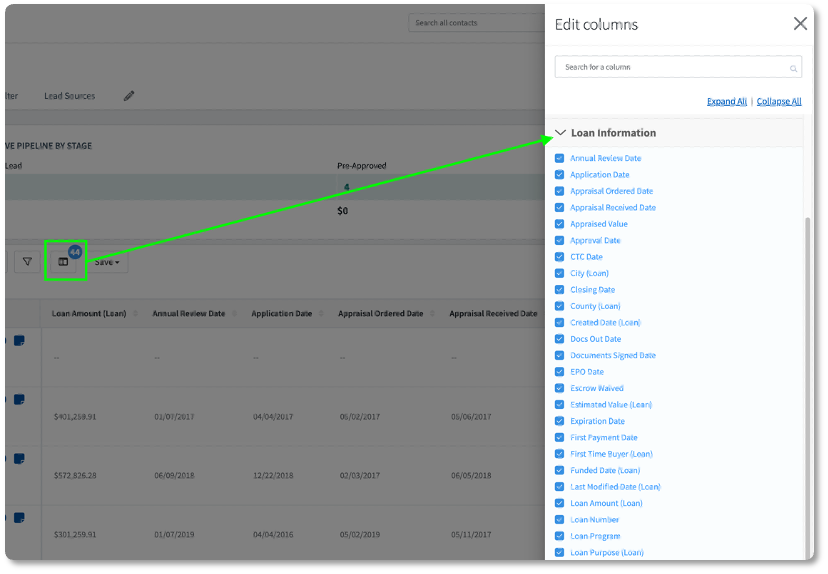
How to get started: Open any Pipeline View, select Edit Columns, and look for the new Loan Information sub-section under Standard Data. Loan officers and sales managers should open their saved Pipeline Views and add the loan fields most relevant to their workflow. Close date and loan status are a good starting point for most teams. Existing views are unaffected until the user explicitly adds new columns — no disruption on release day. Available automatically to all orgs upon release, no configuration required.
Availability
- Audience: All orgs — Loan Officers, Loan Officer Assistants, Sales Managers.
- Status: Generally Available for all clients. No configuration required.
Engage SMS: Group Messaging
Why it matters
Many loan transactions involve multiple participants — co-borrowers, real estate agents, title contacts — and coordinating across them through individual conversations creates friction and gaps in communication. Group Messaging brings everyone into a single thread directly from Total Expert.
What’s new
- Group Messaging: Users can start a group SMS conversation with multiple participants from the messaging inbox. Loan-aware suggestions surface co-borrowers, buyer’s agents, and other relevant contacts based on opt-in status. Group conversations appear alongside individual conversations with clear visual indicators, and unread group messages are flagged the same way as individual ones.
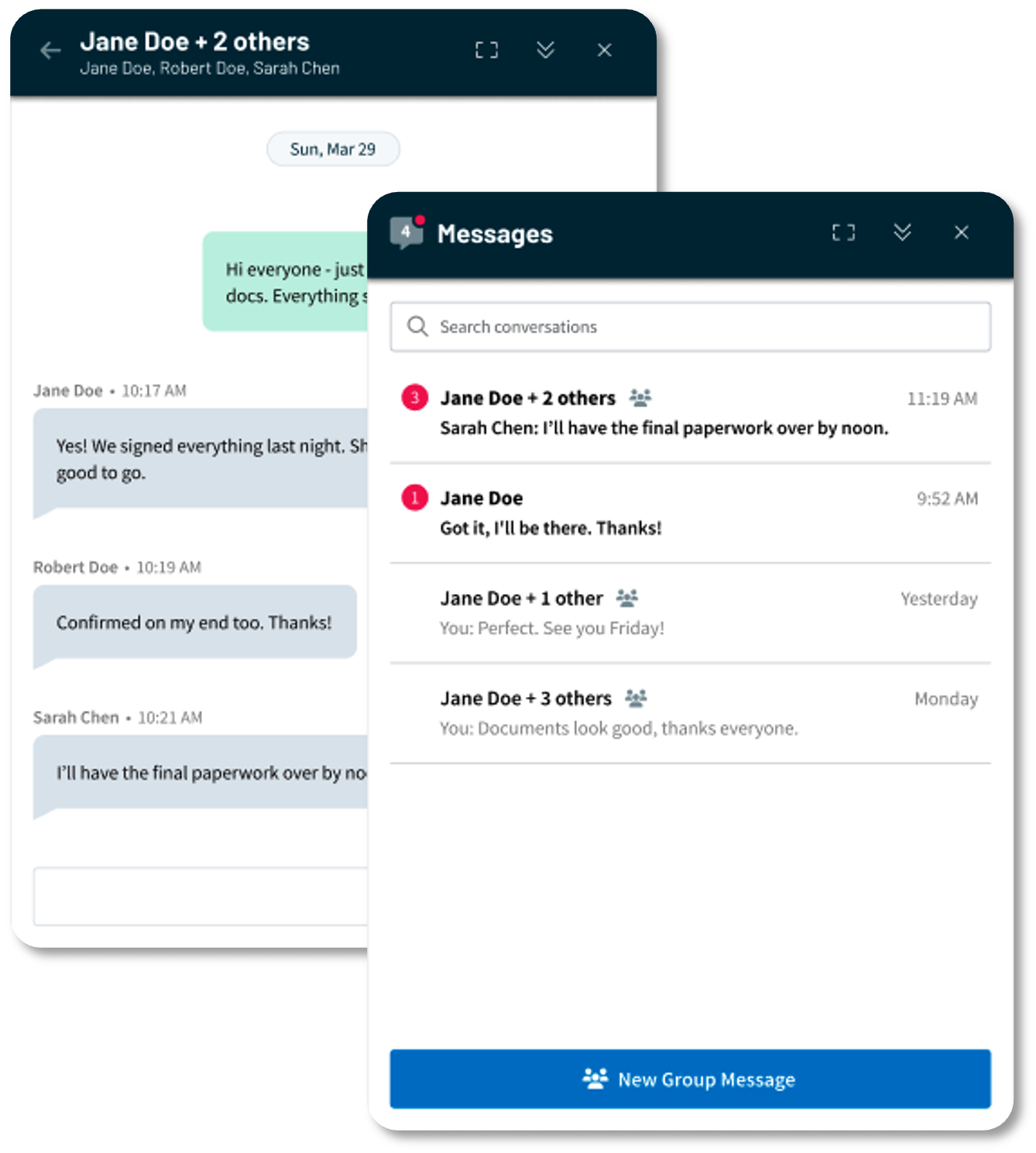
How to get started: Admins should ask their CSM to turn group messaging on for their org. Loan officers should begin using group threads for active transactions involving multiple parties — co-borrower and agent group threads are the most immediate use case. No setup required once access is enabled for your org.
Availability
- Audience: Engage SMS clients.
- Status: Generally Available for Desktop. Request activation through your CSM.
- Group messages consume SMS segments the same way individual messages do — each delivery to each participant in the thread counts toward your org’s segment usage. Organizations with higher messaging volume should review current usage in-platform with the SMS Management usage graph.
- Mobile app access targeted for August.
Reporting Center Updates
Why it matters
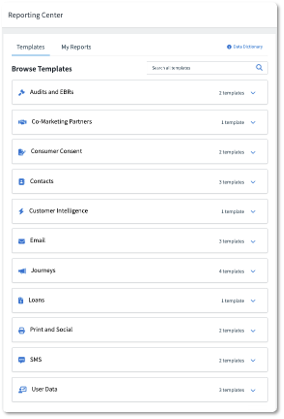
This month’s Reporting Center additions are the most substantial since the feature launched. Five new templates and a set of report enhancements bring several datasets that previously required custom, ad hoc reporting directly into Reporting Center — giving admins self-service access to consent history, Customer Intelligence ROI, SMS message data, and more.
What’s new
- Consent report: A new top-level consent report shows AI Voice consent grants and revocations with associated contact and owner context. Filterable by date range. Replaces the need to submit a support request for consent history data.
How to get started: Compliance and governance admins should run this report as part of any regular consent audit process. Available to all admins with Reporting Center access upon release — no additional configuration required. - Customer Intelligence (Enrichments & Insights) ROI template: A new ROI template generates three views — raw loans, LO-level, and org-level — showing the business impact of Customer Intelligence signals. Filterable by date range, user status, and user email. Does not include Life Events or Credit & Debt Enrichment data.
How to get started: Admins at Customer Intelligence-enabled orgs should run this report to quantify the ROI of their Customer Intelligence investment and share results with sales leadership. Available in the Reporting Center for orgs with Customer Intelligence enabled. - Print & Social Utilization — new filters: The Print & Social Utilization report now supports filtering by user email, team, and cost center, making it easier to segment utilization data by org structure.
How to get started: Marketing admins who regularly run utilization reports can now filter by user, team, and cost center directly within the report. Available in the Reporting Center. - Journey ROI description clarification: The Journey ROI template description has been updated to specify which journey is credited when a contact is enrolled in more than one, and to clarify the timeframe used for ROI calculations.
How to get started: Admins who have previously questioned Journey ROI attribution logic should re-read the updated template description for clarification. Available in the Reporting Center. - Last outcome and last outcome date on Contacts report: The Contacts report template now includes last outcome and last outcome date columns, eliminating the need to submit a separate custom report request for this data.
How to get started: Admins who have previously requested this data via custom report should switch to the self-serve Contacts template going forward. Available in the Reporting Center. - AI Agent Preferences in User Info Report: AI Agent preference fields — including preferred first name — are now included in the User Info Report, giving admins a complete view of how each user is configured for AI outreach.
How to get started: Admins should run the User Info Report after any AI Agent preference updates to verify configuration is correct across their user base. Available in the Reporting Center.
Availability
- Audience: Admins who manage data, reporting, and governance.
- Status: Generally Available. Reporting Center access required for all templates. All templates are available automatically in the Reporting Center with no configuration required.
How to get started
Expert Content
Why it matters
Staying in front of borrowers between transactions is one of the highest-leverage things a loan officer can do — but it only works if the content is worth receiving. These Expert Content additions give marketing teams and loan officers ready-to-deploy assets that keep relationships warm, surface timely refinance opportunities, and mark the milestones that matter to homeowners.

What’s new
- New Postcards — DIY Home Tips & Tricks: 24 postcards across mailing types covering practical home improvement topics: making use of a spare room, painting tips, swapping cabinet hardware, and updating a front door. Designed for year-round deployment as a low-effort, high-relevance touchpoint that keeps loan officers visible between transactions.
- Customer Intelligence Rate Alert Journey: A refreshed Rate Alert journey built around a condensed 10-day timeline with SMS as the primary touchpoint. Focuses on the two outcomes borrowers care about most — lowering their current rate and reducing their monthly payment. Email touchpoints share estimated savings and refinancing options to give borrowers a concrete reason to engage.
- Loan Anniversary Journey: A three-year email journey that celebrates a borrower’s home anniversary each year. Available in two versions: one that’s purely celebratory and relationship-focused, and one that layers in equity-based product mentions and refinancing options for borrowers who may be ready for the next conversation.
Availability
- Audience: Marketing admins and Loan Officers using Expert Content.
- Status: Available as part of the current quarterly Expert Content plan.
New Integration: Tidalwave
Why it matters
Loan officers lose time when their POS and CRM are out of sync — manually reconciling contact records, tracking application status across systems, and re-entering data that already exists somewhere else. The Tidalwave integration closes that loop. Borrower contacts created in Tidalwave flow into Total Expert automatically, application activity surfaces as Insights that can trigger Journey automation, and loan officers can push a contact into a Tidalwave application directly from a contact record without leaving Total Expert.

What’s new
- Tidalwave POS Integration: A new bidirectional integration between Tidalwave and Total Expert that keeps both platforms in sync across the loan lifecycle. When a borrower originates in Tidalwave, their contact record is automatically created or matched in Total Expert with full borrower details and loan officer assignment. As the borrower progresses through the application, Tidalwave sends real-time activity signals to Total Expert as Insights — including loan application started, submitted, and abandoned — which can be used as Journey triggers to fire automated follow-up at the right moment. Loan officers can also initiate a Tidalwave application directly from a Total Expert contact record using the Outbound Data Connector, eliminating duplicate data entry.
How to get started: Organizations using Tidalwave should work with their CSM for the steps toward integration. Setup requires an implementation engagement — it does not activate automatically. Once configured, admins should build Journey automations that leverage the Tidalwave Insight triggers to drive timely borrower follow-up based on application activity.
Availability
- Audience: Organizations using Tidalwave as their point of sale.
- Status: Generally Available. Requires integration configuration. Contact your CSM to begin setup. An implementation services engagement is required.
Small Changes. Big Impact.
Why it matters
The following improvements are driven directly by customer and internal feedback. They sharpen the day-to-day experience across journeys, content, and platform usability.
What’s new
- Journeys
- Journey Purpose Page: Admins now have a dedicated Purposes tab on the Journeys screen to view, manage, and clean up Journey purposes in one place. The list shows purpose name, date created, date updated, number of related journeys, and visibility status. Admins can edit or delete purposes directly from this view, and clicking a related journey count filters the Journey list to show only journeys assigned that purpose.
How to get started: Admins should use this release as an opportunity to audit and clean up existing Journey purposes — remove unused ones, standardize naming, and confirm visibility settings are correct. Now released and available automatically to all admins. - Day of the week condition: Journey builders can now restrict actions from firing on specific days of the week — preventing tasks from being assigned on weekends, emails from sending on Sundays, or any other day-based exclusion.
How to get started: Admins and journey builders should audit existing journeys that include task creation or time-sensitive email sends and add day-of-week exclusions where appropriate. Available automatically to all orgs upon release. - Remove Template Option from Journey Publish: The non-functional “Template Settings” checkbox has been removed from the Journey publish modal.
How to get started: No action required.
- Journey Purpose Page: Admins now have a dedicated Purposes tab on the Journeys screen to view, manage, and clean up Journey purposes in one place. The list shows purpose name, date created, date updated, number of related journeys, and visibility status. Admins can edit or delete purposes directly from this view, and clicking a related journey count filters the Journey list to show only journeys assigned that purpose.
- Content
- Numbered pagination on content list pages: Manage Marketing, Print Marketing, Social Media, and Email Marketing list pages now use numbered pagination — users can jump directly to any page.
How to get started: No action required — automatically available upon release. - Enter key triggers duplicate action in asset modal: Pressing Enter in the Duplicate Asset modal now confirms the duplication instead of closing the modal.
How to get started: No action required.
- Numbered pagination on content list pages: Manage Marketing, Print Marketing, Social Media, and Email Marketing list pages now use numbered pagination — users can jump directly to any page.
- Customer Intelligence
- Enrollment Report date range cap: The “within a range” and “in the last” filter options on Customer Intelligence Enrollment Reports are now capped at 60-day windows to prevent timeouts on large contact populations.
How to get started: Admins who regularly run CI Enrollment Reports beyond 60 days should adjust their process to run sequential windows. This change is automatic — no enablement required.
- Enrollment Report date range cap: The “within a range” and “in the last” filter options on Customer Intelligence Enrollment Reports are now capped at 60-day windows to prevent timeouts on large contact populations.
- Mobile App
- Swipe actions on the Contact List: Loan officers can now swipe left on any contact row to reveal a delete action, or swipe right to quickly call or message — without navigating into the contact record first. Contacts without a phone number or messaging eligibility have those actions appropriately disabled.
How to get started: No configuration required — available automatically upon updating to the latest version of the mobile app. - Contact creation and group visibility: The contact creation flow has been updated with a multi-select group field that lets loan officers assign a contact to multiple groups at creation. Once created, the group assignment is now visible on the contact details page.
How to get started: No configuration required — available automatically upon updating to the latest version of the mobile app.
- Swipe actions on the Contact List: Loan officers can now swipe left on any contact row to reveal a delete action, or swipe right to quickly call or message — without navigating into the contact record first. Contacts without a phone number or messaging eligibility have those actions appropriately disabled.
In Case You Missed It
- LOS-driven lead stage updates: When a loan status changes in the connected LOS, the corresponding lead stage in Total Expert now advances automatically — no manual update from the loan officer required. Pipeline views stay accurate in real time, reducing the administrative overhead of reconciling two systems.
How to get started: Existing Lead Management clients can update any existing Journeys to connect loan triggers to “update Lead Stage.” Clients without Lead Management, work with your Customer Success Manager (CSM) to enable Lead Management for your organization, including the implementation services package required.
The month’s theme holds through to the close: when the right data is visible in the right place — on a pipeline, in a report, on a contact record — teams spend less time hunting for information and more time acting on it. If you want help configuring any of these features or building them into your workflows, visit the Knowledge Base or reach out to your CSM.