

Libraries
There are 2 image libraries available in Total Expert:
- Print Marketing > Image Library – This is where any user can upload images that they can use when customizing marketing materials. Images uploaded to this library by a user are not available to other users.
- Manage Marketing > Global Image Library – This is where organization administrators can upload images that are available to anyone in their organization. These images do not appear in users' individual libraries, but they are available for them to select when customizing marketing materials. This library is not available to non-administrator users.
See How to Add or Delete Files in My Image Library for information on uploading or deleting images from these libraries.
Using Uploaded Images
When you are working on a customizable marketing piece, such as a print flyer, and that piece is configured with an image that can be replaced, you can select an image from either library to replace the default image. Click the image in the piece to open the file selector.
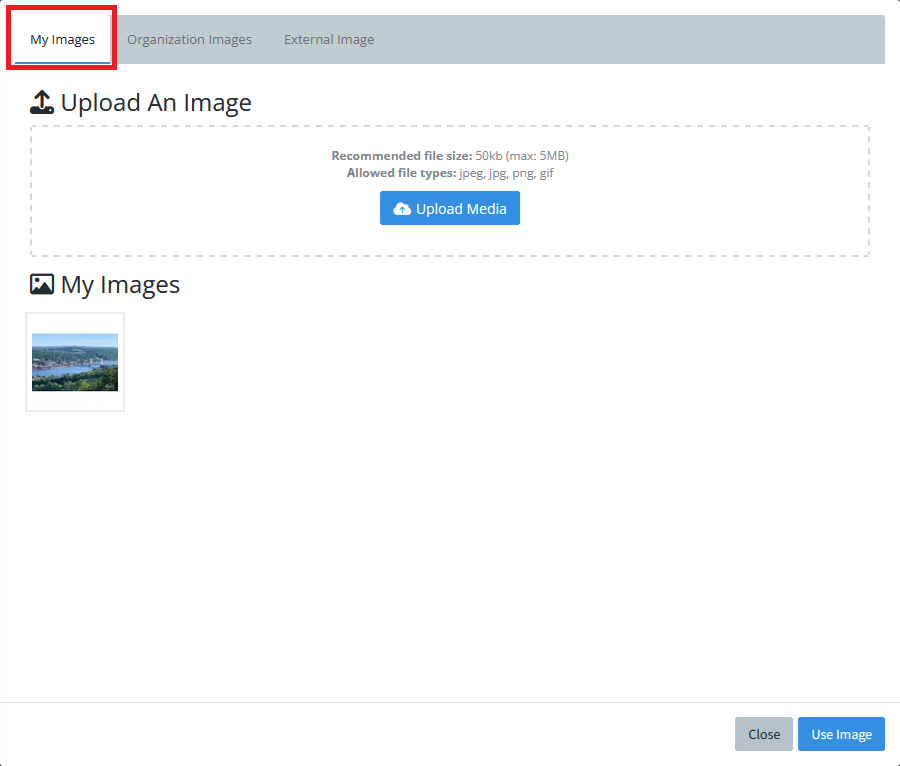
The file selector opens to the My Images tab by default. This shows all the images you have uploaded in your individual image library. You can also upload a new image, which would then be available in your individual image library in the future.
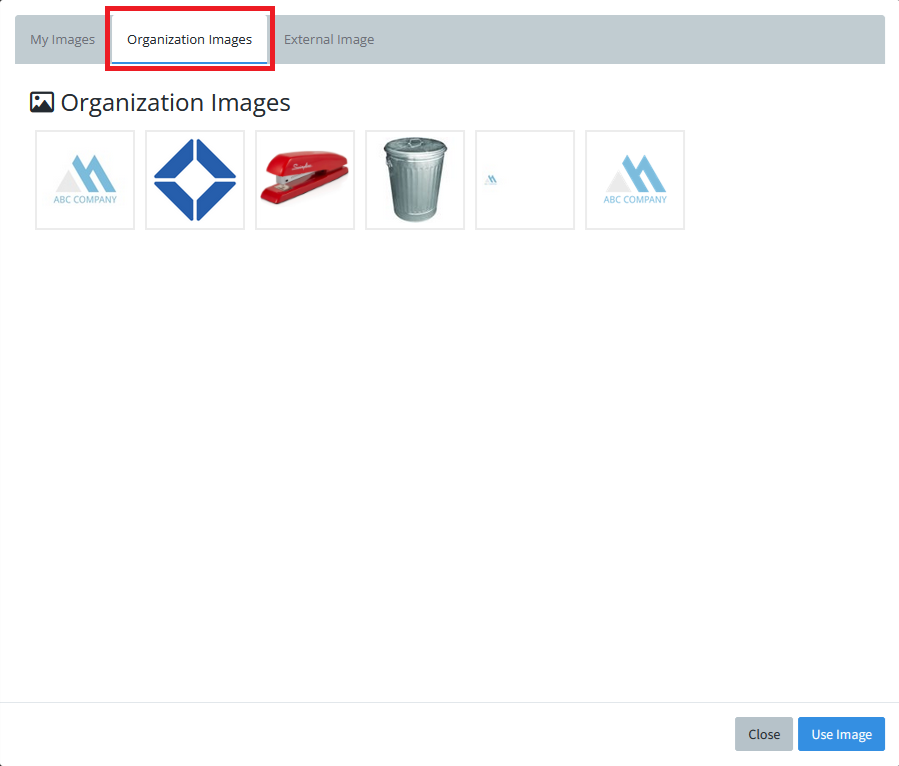
Click the Organization Images tab to see all the images that have been uploaded to the global image library by an administrator. You cannot add new images from this tab.
In the External Image tab, you can enter the URL for an image housed elsewhere on the Internet.
Click an image in either library to highlight it (or enter a URL on the External Image tab). Then click the Use Image button to insert the image in the selected location.