

Admins can view and filter all AI scenarios run by users across their org.
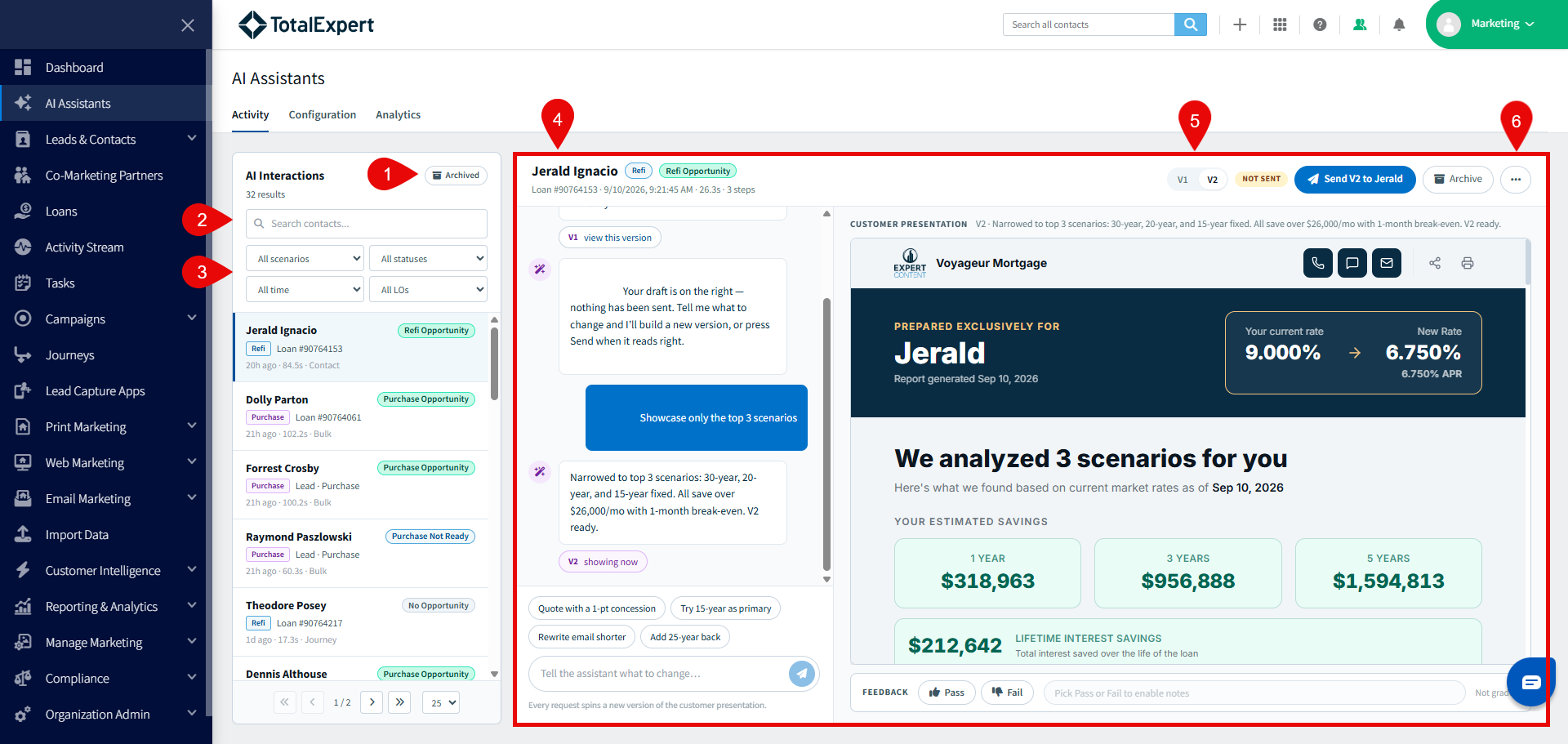
- Click here to toggle between Active and Archived scenario runs.
- Search scenario runs by the name of the contact.
- Filter scenario runs by 4 criteria:
- Scenario Type
- Purchase
- Refinance
- Scenario Status
- Refi Opportunity
- HELOC Opportunity
- Purchase Opportunity
- Purchase Not Ready
- Monitor
- No Opportunity
- Processing
- Failed
- Time frame
- Today
- This week
- This month
- Loan Officer user
- Scenario Type
- The main part of the screen displays the natural language scenario prompting window with a record of all related prompt records and a preview of the scenario itself.
- Note: admins can make updates to the presentations from this view but those updates will not be visible within the loan officers account or version of the presentation.
- If multiple versions of this presentation have been created, click here to toggle between the version history.
- If you click the 3-dot icon on the right side of the presentation window, you will have 5 options:
- Copy link copies a link to the presentation to be pasted somewhere else.
- Open in new tab opens the presentation in a new browser tab.
- Analysis summary opens a right-hand pane that details the number of scenarios created for this presentation, the number of calls made to the Product & Pricing Engine, how long it take to create this version of the presentation, as well as borrower details, rationale for why these specific scenarios were created, and a recommended contact strategy with draft email and SMS copy.
- Raw input and output provides a code view.
- Audit log shows what was changed and by whom for each version of the presentation.