

By utilizing Total Expert's Office365 integration, loan officers can allow customers interacting with the AI Scenario and/or SMS Assistants to schedule live appointments on their calendars.
Integration
First, ensure the Office365 integration is fully connected by navigating to the Integration Settings page and checking the status of this particular integration.
The screenshot below represents an unconnected Office365 integration - the blue button says "Connect":

The screenshot below represents a successfully connected Office365 integration - the button is now red and says "Disconnect".

For more information about how to integrate with Office365, check out the related resource here: https://totalexpert.freshdesk.com/support/solutions/articles/22000251362-how-to-integrate-with-office-365
Availability Configuration
There are a variety of configuration options that are impact your scheduling availability, in addition to your actual Office365 calendar. Navigate to the AI Assistant Settings page to view and edit these settings.
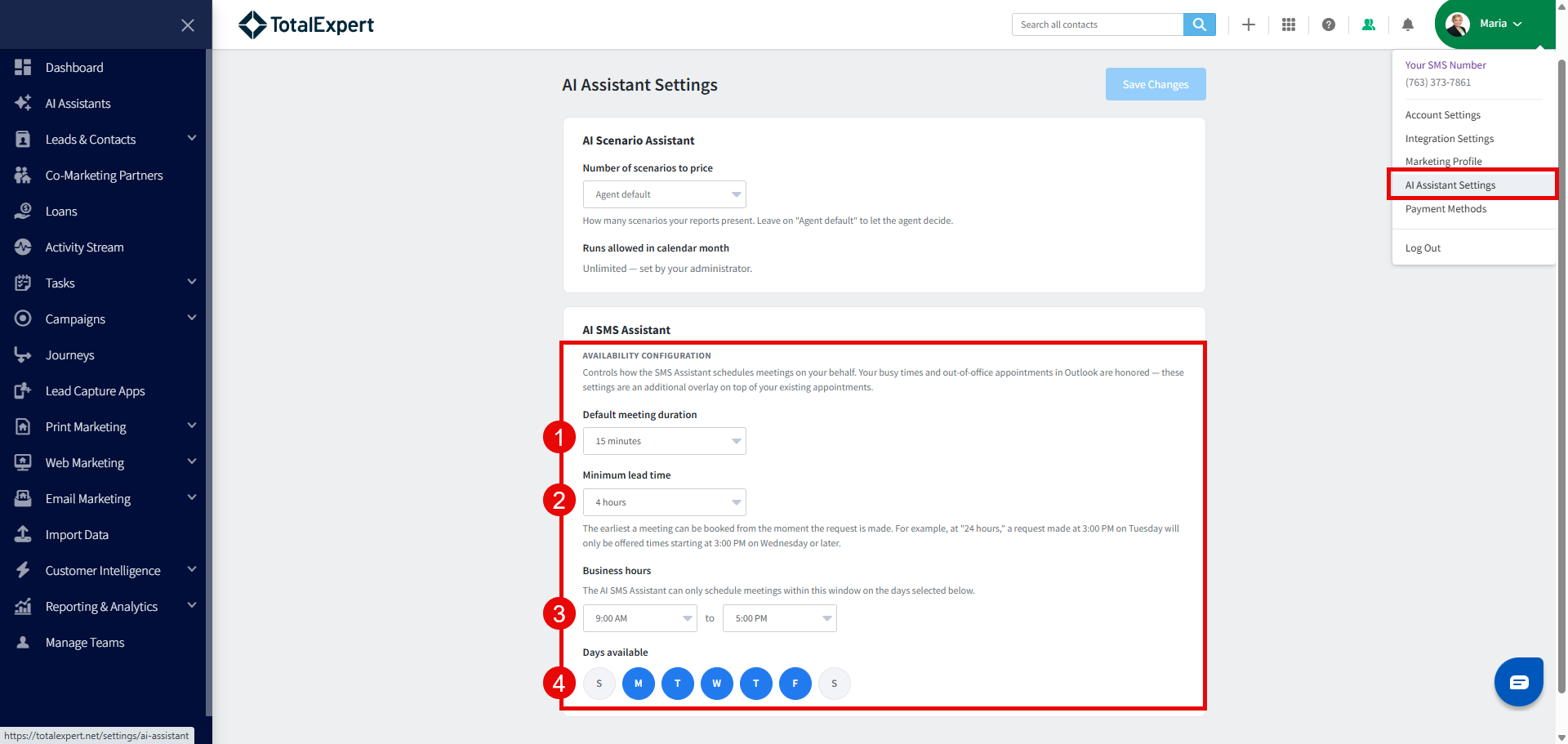
- Default meeting duration - how long should the meeting be scheduled for?
- Minimum lead time - the earliest a meeting can be booked from the moment the request is made. For example, if the lead time is 4 hours and the request is made at 12p CT, the earliest availability would show as 4p CT.
- Business hours - during which hours can the AI Assistant schedule meetings?
- Days available - during which days of the week can the AI Assistant schedule meetings?
Note regarding business hours and days available: keep in mind that any meetings or appointments you schedule during the "business hours" and "days available" configured here will take available slots for consumers to book.
Using the Scheduling Feature
The ability to schedule lives in 2 places - within the AI Scenario Assistant presentation and through the AI SMS Assistant messages.
AI Scenario Assistant Consumer Presentation
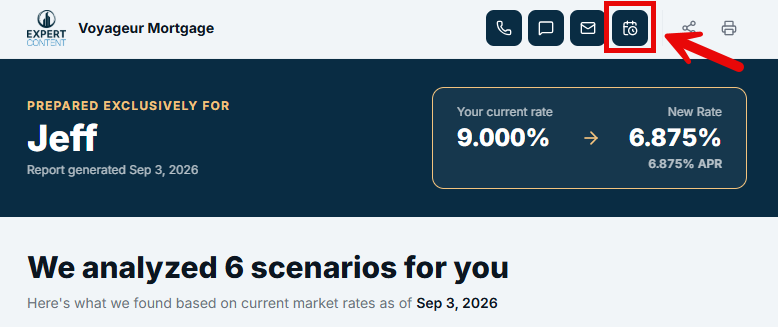
While viewing the presentation, the consumer can click the schedule icon in the upper right-hand corner to select a date and time for the appointment, and share their contact information.
The consumer will then see a "Schedule a call with..." pop-up window which will display your available dates and times according to your scheduling preferences and calendar availability.
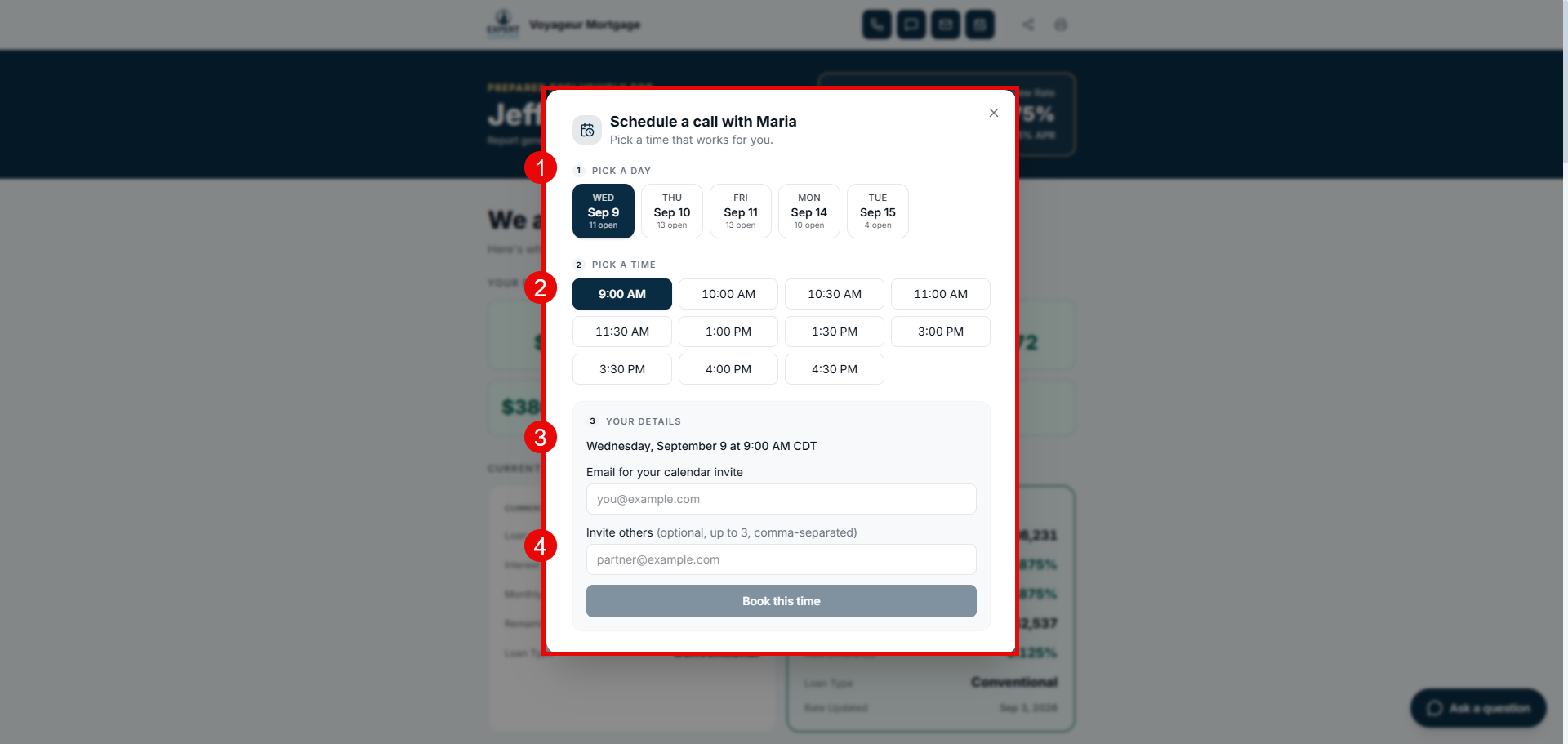
- The consumer chooses their preferred date.
- The consumer chooses an available time on that day.
- The consumer provides their email address.
- The consumer can include up to 3 additional email addresses for the appointment to also be sent to.
AI SMS Assistant
More details to come...