

August's release adds two new AI Assistants to supercharge loan officers' workflows, as well as material enhancements to Lead Management. The infrastructure we've built — Lead Management, Pipeline Views, Enrichment & Insights, Rate Quotes, Engage SMS — now has AI working on top of it, identifying opportunities, carrying on borrower conversations, and acting on signals automatically. Be sure to check out the "Small Changes. Big Impact" section with updates to Content and Journeys based on feedback provided to us by customers.
AI Scenario Assistant
Why it matters
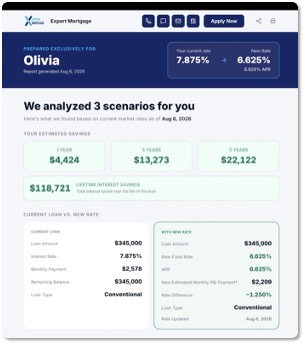
Identifying the right opportunity for the right borrower at the right time has always required manual effort — pulling loan data, checking rates, building pricing scenarios, and drafting outreach. For most loan officers, it's not easy for this to happen consistently. The AI Scenario Assistant can handle the full sequence automatically: monitors an LO's database for opportunities, determines the right loan scenarios for an individual contact, prices them through the connected pricing engine, and delivers a branded consumer presentation while drafting outreach for the LO to review and send.
What's new
- Refinance Scenario: Identifies contacts in an LO's pipeline with a meaningful refinance opportunity based on admin-configured triggers, current market rates, and Enrichment & Insights signals. The assistant fetches each contact's loan, property (AVM), and history from Total Expert, determines a configurable number of relevant loan scenarios (for example, if a contact is six years into a 30-year conventional loan, the agent prices a 20- and 25-year fixed), prices them through the LO's connected PPE, and generates a contact strategy and draft email and SMS outreach for the LO to review. Results surface on the contact record and in the Rate Quotes interface, alongside a branded consumer presentation with a short link suitable for SMS.
- Purchase Scenario: Extends the same AI Scenario Assistant architecture to purchase-ready contacts — those with pre-approval data, estimated purchase price, or down payment information on file. Rather than anchoring scenario selection to an existing loan, the assistant works from the contact's profile and lead details to determine two to four contextually appropriate purchase loan scenarios, prices them through the PPE, and produces a purchase score, contact strategy, email and SMS drafts, and a purpose-built consumer presentation visually distinct from the Refi version.
- Multiple launch options: Both scenario types can be initiated through automation or manually by the loan officer. Methods include Journey actions, a contact list bulk action, or a contact record inline button. The Journey tile and list bulk action support a use case dropdown — select Refi or Purchase at the point of launch.
- Loan officer and admin visibility: Loan officers have an in-platform view of AI Scenario Assistant status and outcomes for all their contacts, filterable by date, contact, and outcome. Admins have an org-wide equivalent.
- Audit-ready by design: Every Scenario Assistant run produces a structured reasoning trace — logged and accessible to admins in-platform. Decisions can be audited for fair lending review, and compliance teams can review and approve changes to the assistant's prompts and knowledge base before they go live.
Availability
- Audience: Loan Officers and Admins at organizations with a connected PPE (Optimal Blue, Polly, or TE Connect). Enrichment & Insights configured is preferred. LOs see only their own contacts; Admins have org-wide access.
- Status: Generally Available.
How to get started
- Contact your CSM to learn more about this Add-On feature.
- AI Scenario Assistant Job Aid for Loan Officers
AI SMS Assistant
Why it matters
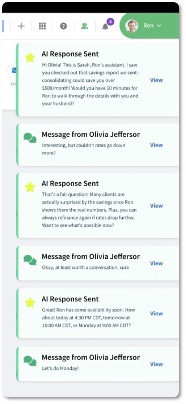
Staying responsive to every borrower across every stage of the mortgage process isn't scalable for a loan officer managing a full pipeline. The AI SMS Assistant changes that equation — it can carry on a full multi-turn conversation with a contact on the LO's behalf, responding to replies, progressing toward a defined goal, and handing off to the LO at exactly the right moment. For the LO who wants to stay in the loop on every message, it works as a drafting tool. For the LO who's ready to let it run, it works autonomously.
What's new
- Out-of-the-box use cases: Administrators deploy the SMS Agent via Journeys configured with one or more of nine pre-built use cases — each with its own goal, opening message, and conversation flow: Rate Alert (refinance outreach on a rate improvement), Credit Inquiry (recapture after a competitor credit pull), Firm Offer of Credit, New Lead Purchase, New Lead Refi, New Lead HELOC, Periodic Mortgage Review (portfolio check-in for past borrowers), Aged Pre-Approval (re-engagement before expiration), and In-Process Update (milestone-driven loan status updates).
- Ad-hoc AI message generation: From any contact's SMS thread, an LO can prompt the assistant with a plain-language goal — "tell them what they could do with a cash-out" or "follow up on the rate quote from last week" — and receive a draft grounded in that contact's specific context, ready to review and send.
- LO autonomy controls: Three modes govern how the assistant behaves — AI Autopilot (agent sends autonomously), AI Assist (agent drafts, LO approves before sending), and AI Disabled (LO handles manually). These are configurable at the org level by admins and at the user level by each LO. The org setting establishes the ceiling — a user cannot enable Autopilot if the org is set to Assist. Contact-level overrides give LOs per-conversation control on top of their user-level default.
- Calendar and appointment scheduling: When a contact expresses interest in meeting, the agent checks the LO's connected Office 365 calendar and offers 2–3 open slots — labeled with day, date, time, and time zone — directly within the SMS conversation. Once the contact confirms, the appointment is booked on the LO's Outlook calendar with both parties receiving an invitation. The contact can also reschedule or cancel within the same conversation. Requires an active Office 365 connection with scheduling enabled for the LO.
- Journey integration: Admins deploy SMS Agent use cases as a Journey action tile, selecting the use case from a dropdown. Auto-follow-up cadence for non-responders is configured within the Journey itself, giving admins control over outreach frequency independent of the agent.
- AI message indicators: Visual indicators in the conversation UI distinguish AI-generated messages from LO-sent messages.
Availability
- Audience: Engage SMS clients. Admins configure org-level settings and Journey use cases; LOs manage their own autonomy settings and use the ad-hoc generation tool. Calendar scheduling requires an active Office 365 connection per LO.
- Status: Generally Available.
How to get started
- Contact your CSM to learn more about this Add-On feature.
- User Guide
Lead Management: Custom Fields
Why it matters
Every organization tracks lead data that doesn't fit neatly into standard fields — internal scoring, custom stage names, marketing source details, or fields required by a proprietary workflow. Until now, that data lived outside Total Expert. Custom fields on the Lead Management object bring it in, connecting it to the pipeline, journeys, and reporting that already live there.
What's new
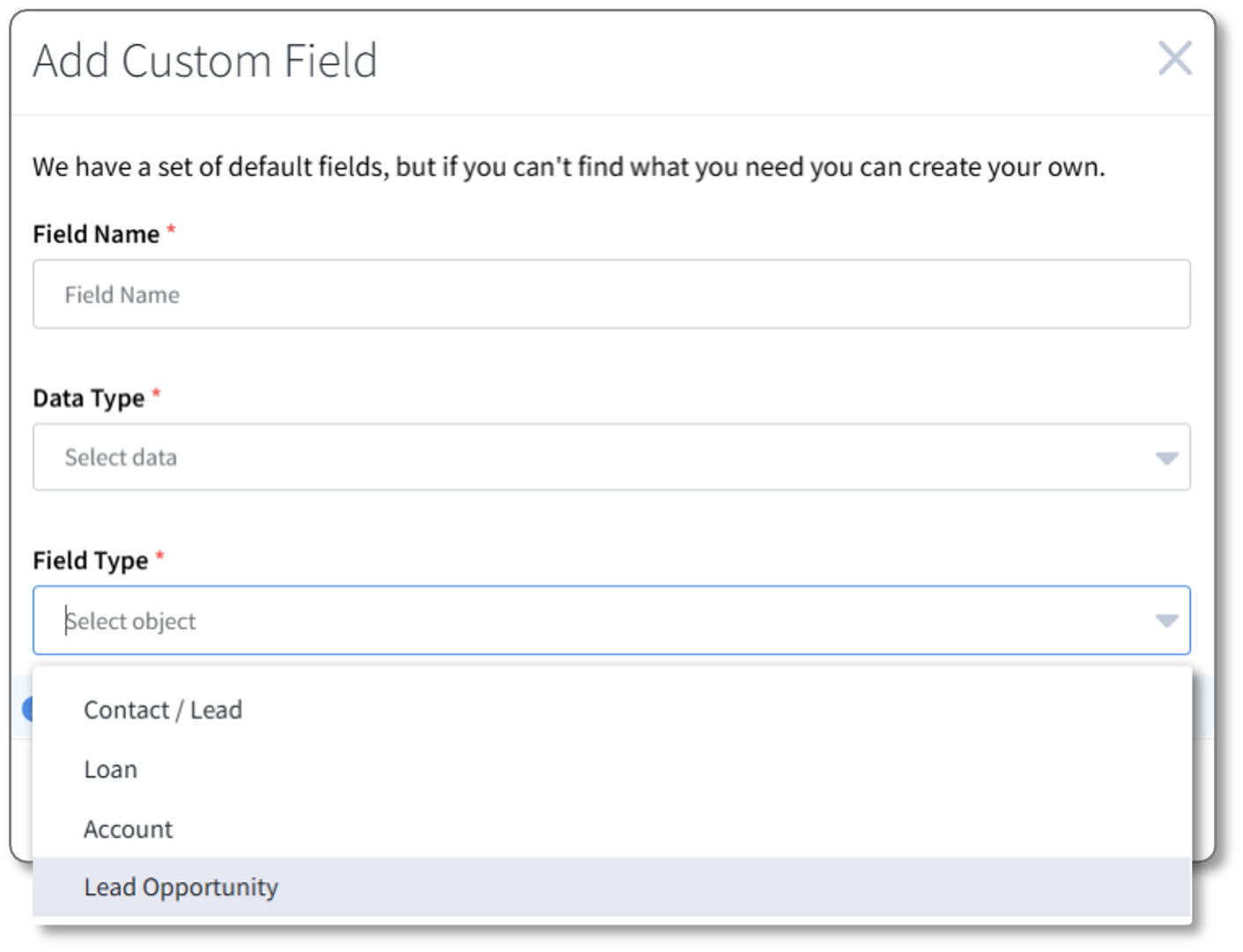
- Custom fields on the Lead Management object: Admins can create custom fields directly on the Lead Management object. Once created, those fields are available as columns and filters in Pipeline Views, as targeting conditions in Campaign Builder, as conditions in Journey builders, and via the Lead Management API and importer. Brings Lead Management to parity with the Contact and Loan objects, which have supported custom fields for prior releases.
Availability
- Audience: Admins at organizations with Lead Management enabled.
- Status: Generally Available for orgs with Lead Management enabled. Available upon release — no additional configuration required beyond creating the custom fields.
How to get started
- Admins should identify the custom data their teams currently track outside of Total Expert and create the corresponding custom fields in Total Expert. Once created, fields can be added to Pipeline Views immediately.
- User Guide
Lead Management: LOS Loan Type Mapping Tool
Why it matters
LOS-driven lead stage updates shipped in June so loan stages in Total Expert now advance automatically when a loan status changes in the connected LOS. The Mapping Tool gives admins the ability to improve the accuracy of loan to lead matching, replacing a configuration-only setup with a self-serve UI they can manage without filing a support request.
What's new
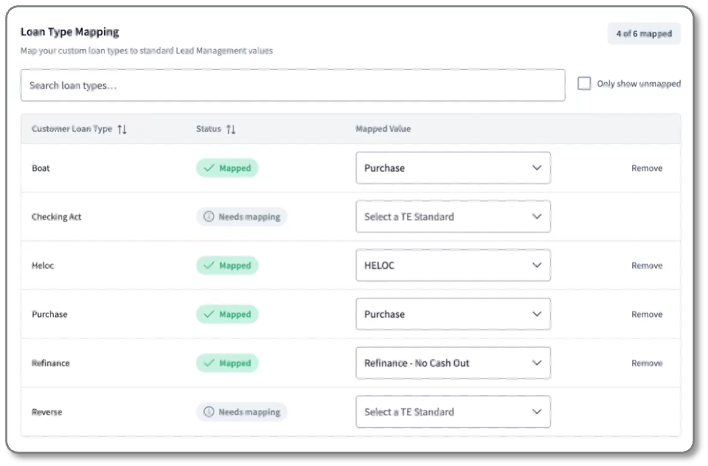
- LOS Loan Type Mapping Tool: A new admin UI for mapping customer-specific LOS loan purpose values to Total Expert standard values, which in turn updates lead stages. Admins can view current mappings, update them, and add new ones directly in the platform — no implementation engagement or support ticket required for routine mapping changes.
Availability
- Audience: Admins at organizations with LOS-driven Lead Stage Updates enabled.
- Status: Generally Available
How to get started
- Admins should review current LOS-to-lead-stage mappings after this release and verify they reflect the organization's current workflow.
Pipeline Views: Loan Detail Flyout Panel
Why it matters
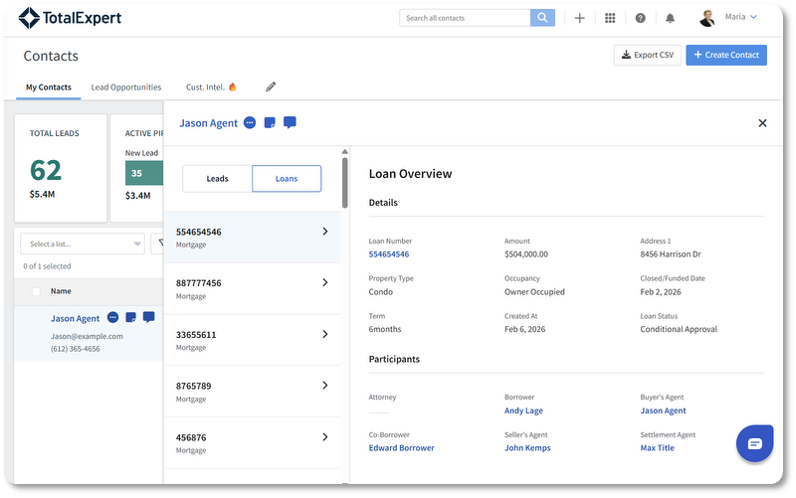
July gave loan officers loan data visibility as columns in their Pipeline View. The Loan Detail Flyout Panel takes the next step — clicking any contact row now opens a panel on the right side of the screen with the full loan record in context, without leaving the list. For LOs working large pipelines, the difference is real: no more navigating into a contact record to pull up loan details, then navigating back to find your place. The panel stays open as you move between rows, updating instantly with each contact's information.
What's new
- Loan Detail Flyout Panel: Clicking a contact row in Pipeline View opens a flyout panel displaying that contact's loan data in a read-only format — loan fields, status, type, and key details — without navigating away from the pipeline. The panel persists as the user clicks between contact rows, updating in place rather than opening and closing with each selection. Loan participant fields — Borrower, Co-Borrower, Buyer's Agent, Seller's Agent, Settlement Agent — display as clickable links that navigate directly to that participant's contact profile.
- Quick actions from the panel: The flyout header includes the same action menu available on the Pipeline View row itself — Note, Outcome, SMS — so LOs can take action on a contact without losing their place in the list.
- Lead and Loan tabs for LM users: For organizations with Lead Management enabled, the flyout includes both a Leads tab and a Loans tab, giving LOs a single panel to review both the lead record and the associated loan without switching contexts. Non-LM users see the Loans tab only.
- Deep link to Contact Profile: Clicking the contact name at the top of the panel navigates directly to the Products tab of that contact's profile, with the relevant loan in focus.
Availability
- Audience: All orgs, all users. Lead and Loan tab toggle is available to users with Lead Management enabled; Loans tab only for all other users.
- Status: Generally Available on 8/21.
How to get started
- Open any Pipeline View and click a contact row to launch the panel. LOs should use the flyout as their primary way to review loan context and take action without leaving their list. No setup required.
SMS External API
Why it matters
Organizations integrating Total Expert with third-party platforms have been limited to managing SMS manually or through existing native connectors. The SMS External API opens programmatic SMS — putting opt-in status, message history, and send controls in the hands of the platforms loan officers already use.
What's new
- SMS External API: A new API enabling third-party systems to trigger outbound SMS through Total Expert, retrieve opt-in status and conversation history for a contact, track send job status, and receive inbound replies to API-initiated conversations.
Availability
- Audience: Admins and technical teams at organizations with Engage SMS.
- Status: Generally Available upon request.
How to get started
- Contact your CSM to learn more about this feature.
Expert Content
Ready-to-deploy content keeps loan officers visible and relationships warm between transactions. August's Expert Content additions give marketing teams seasonal touchpoints, a refreshed equity outreach journey, and a new flyer format that supports fully customized front-and-back designs.

What's new
- Fall Seasonal Recipe Postcards: The first installment of a quarterly seasonal recipe postcard series — a low-effort, high-relevance touchpoint designed for year-round deployment. Fall edition ships in August; subsequent seasonal installments follow quarterly.
- Enrichment & Insights Equity Alert Journey: A refreshed equity alert journey leveraging Customer IQ signals to identify homeowners with meaningful equity and initiate timely outreach. Built for orgs with Enrichment & Insights enabled. Admins should ask their CSM for access to this journey. Read the Knowledge Base article.
- Double-Sided Flyer Template: A new flyer template that supports fully designed front and back background images — admins upload their own artwork for each side. A toggle controls whether the standard footer appears on the front page, back page, both, or neither.
Availability
- Audience: Marketing admins and Loan Officers using Expert Content.
- Status: Available as part of the current quarterly Expert Content plan. Enrichment & Insights Equity Journey requires Enrichment & Insights to be enabled.
Cotality: New Expert Partner Network Integration
Why it matters
Loan officers monitoring contacts for home purchase and equity opportunities typically work from incomplete signals — they know a contact owns a home, but not whether they've recently been shopping or how much equity they've built. The Cotality integration closes that gap, bringing real-time home shopping activity and equity signals directly into Total Expert as Insights that can trigger Journey automation and surface timely outreach opportunities without any manual data exchange.
What's new
- Cotality EPN Integration: A new bidirectional integration between Cotality and Total Expert. Contact records are automatically shared with Cotality via the Outbound Data Connector, populating a Cotality monitoring portfolio. When Cotality detects precision marketing signals — home shopping activity, AVM changes, estimated equity position — those signals are sent back to Total Expert as Insights. Admins can trigger Journey automation off these Insights, enabling loan officers to reach out at the moment a contact shows buying or refinancing intent, without requiring the LO to manually monitor or initiate.
- Insight attributes available for Journey targeting: Cotality Insights include AVM confidence score, estimated equity, estimated AVM value, listing observation count, and observation location data — giving Journey builders precise signal data to build targeted automation rules around.
Availability
- Audience: Organizations using Total Expert and Cotality.
- Status: Available to current Total Expert and Cotality clients only.
How to get started
- Contact your CSM to learn more about this feature.
Small Changes. Big Impact.
Why it matters
The following improvements are driven directly by customer and internal feedback. They sharpen the day-to-day experience across journeys, content, and platform usability.
What's new
Contacts
- Redesigned Products Tab: The Products tab on the Contact Profile page has been updated to match the layout, information hierarchy, and visual design of the Leads tab — card/list structure, collapsible category sections, a multi-select product type dropdown, clickable loan participant links, and chronological record ordering. Loans display first, followed by account products in alphabetical order.
How to get started: No action required — automatically available upon release.
Journeys
- Journey Condition — Teams: Journey builders can now filter and branch journeys based on which team is sending — with include and exclude support for one or more teams, available as both a condition tile and an inline condition.
How to get started: Available automatically to all orgs upon release. Admins should audit existing journeys and add team-based conditions where outreach should vary by team. - One-Click Journey Access Removal: A "Remove All Access" action in the Journey Publish & Access Settings panel clears access at all three levels simultaneously — Journey Access Settings, Team Settings, and User Settings — with a confirmation dialog before executing. Resolves the persistent issue where admins couldn't fully remove access from legacy journeys that had layered grants across multiple levels.
How to get started: Available automatically to all admins upon release. No action required unless you have legacy journeys with unintended access — use this as an opportunity to audit and clean up those journeys. - Journey Stats: Active Contact Count: The "Active Contacts" count in Journey Stats now reflects all contacts actively on the journey across all users — not just the journey creator's contacts. Gives admins accurate, org-wide visibility into journey performance without requiring a separate report.
How to get started: Available automatically to all admins upon release. No action required. - Lead Date Operator: Journey builders can now use date-based operators on lead date fields as Journey conditions — enabling time-based branching logic tied to when a lead was created or last updated.
How to get started: Available automatically upon release. Journey builders should audit existing Lead Management journeys for opportunities to add lead date conditions where timing-based branching would improve relevance. - UTM Journey Condition: UTM parameters are now available as Journey conditions, letting admins segment automated outreach based on lead source channel — treating leads from paid search differently than leads from a referral form, for example.
How to get started: Available automatically upon release. Admins running multi-channel lead generation should update Lead Management journeys to take advantage of UTM-based branching.
Content
- Last Updated By on Snippets: A "Last Updated By" column now appears in the Snippets UI, showing which team member last edited each snippet.
How to get started: No action required — automatically available upon release. - Timestamp on Print Media File Downloads: Default saved print media file names now include a download timestamp, differentiating same-day versions and reducing file naming confusion for admins managing multiple print iterations.
How to get started: No action required — automatically available upon release. - Required Field Indicator on Markup Name: "Markup Name" is now visually flagged as a required field when creating a media cost split markup, preventing incomplete submissions.
How to get started: No action required — automatically available upon release. - Deep-Linkable Content Library URLs: Content library URLs now persist through SSO authentication redirects, making it possible to share direct links to specific content library items with other users who authenticate via SSO.
How to get started: No action required — automatically available upon release. Admins and marketing teams can now share direct links to specific content library items. - Email Stats: Sort by Name: The Name column in Email Stats is now sortable, making it easier to find and compare specific email performance without scrolling.
How to get started: No action required — automatically available upon release. - Auto-Populate Email Name on Copy and from Gallery: The Name field auto-populates when copying an email or creating one from the Expert Content Template Gallery, eliminating a manual naming step in the duplication workflow.
How to get started: No action required — automatically available upon release. - Expanded Font Size Options in Print and Social: Additional font size options are available for editable text in Print and Social builders, giving LOs and admins more typographic control when customizing templates.
How to get started: No action required — automatically available upon release.
Reporting Center
- Custom Field Support in Reporting Center: Contact and Loan report templates in the Reporting Center now support custom fields as report columns. Admins enter the system name of any custom field in the new Contact Custom Fields or Loan Custom Fields input on the report configuration screen — the field is added as a column in the report output automatically. Multiple custom fields can be added to a single report.
How to get started: Admins who have created custom fields on the Contact or Loan object should add those field system names to their standard Reporting Center report runs to include custom data alongside standard columns. No action required for teams not using custom fields.
Questions about any of these features? Visit the Knowledge Base or reach out to your CSM.